Key takeaways
- Compare the best pen-enabled windows tablets with keyboard support, from Surface picks with Slim Pen support to an ASUS OLED slate with pen included.
Buying a Windows tablet for pen work means checking two separate promises before anything else: the screen must accept an active pen, and a real keyboard must exist for that exact model. Many tablets offer one and quietly skip the other, or support a pen that ships in a different bundle. The listings below were chosen because each one confirms both points in its own product information.


This guide serves note takers who mark up documents by hand, students who type essays between classes, illustrators who sketch on a pressure-sensitive screen, and mobile workers who want one light machine. Every pick runs Windows, supports an active pen, and pairs with a keyboard, with the names and figures taken from the Amazon product pages.
Quick Picks
As an Amazon Associate we earn from qualifying purchases
| Product | Best for | Key spec from title |
|---|---|---|
| Microsoft Surface Pro 11 (2024) 13-inch | Long documents typed in shared workspaces | Snapdragon X Plus (10 Core), 16GB RAM, 512GB storage |
| Microsoft Surface Pro 9 (2022) 13-inch | Intel software and a 2880×1920 screen | Intel 12th Gen i5, 8GB RAM, 256GB storage |
| ASUS ROG Flow Z13 (2025) 13.4-inch | Demanding creative apps and play on one tablet | AMD Ryzen AI MAX+ 395, 32GB RAM, 1TB SSD |
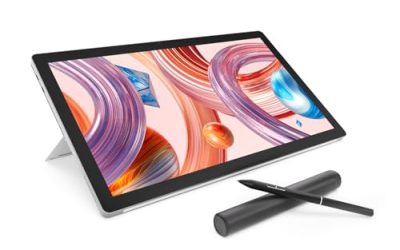
| ASUS Vivobook 13 Slate OLED 13.3-inch | Buyers who want pen and keyboard in the box | Intel Pentium N6000, 4GB RAM, 128GB eMMC |
How to Choose
Confirm the pen type and what ships in the box
Active pen support varies by model, and the pen itself may be bundled or sold on its own. Surface listings state plainly that the Slim Pen and the keyboard are sold separately, while the Vivobook Slate listing names the ASUS Pen 2.0 among its included items. Read the built-in media and box contents lines on the listing before ordering, and match the pen model to the tablet, since a pen built for one protocol will not write on a screen that expects another.
Match the processor family to your Windows programs
These four tablets use three different processor families: Snapdragon X Plus, Intel Core, and AMD Ryzen, plus a Pentium in the OLED slate. Most everyday Windows programs run on any of them, but older specialist software, hardware drivers, and some games are written for Intel or AMD chips. If your work depends on a niche program, check its published system needs against the processor named in the listing, and pick the chip family that the developer names first. This single check prevents the most common mismatch in this category: a fine tablet returned because one valued program refuses to run well on its chip.
Decide how you will type: attached, detached, or bundled
Keyboard arrangements differ more than the product photos suggest. The Surface Pro line uses a snap-on keyboard cover that is bought separately and folds flat for travel. The ROG Flow Z13 listing describes a detachable keyboard packed with the tablet, and the Vivobook Slate includes its full-size keyboard in the box. Think about where you type: a cover keyboard suits desks and trays, while a bundled keyboard removes a second purchase from your plan entirely. Also check whether the keyboard charges a stored pen, since that feature turns the cover into the pen’s home between sessions.
Weigh screen size, memory, and storage together
Screen size runs from 12 inches up to 14 across this category, and the larger panels usually carry more memory and storage. The picks here span 4GB of RAM with 128GB of storage up to 32GB of RAM with a 1TB SSD. Handwritten notes and documents ask very little of either figure, but layered drawings, big photo libraries, and offline media fill space quickly. Choose the configuration named in the listing title, because memory and storage are fixed once the tablet arrives.
The 4 Best Options
Microsoft Surface Pro 11 (2024) 13-inch
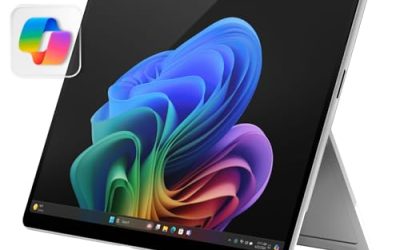
This is the pick for buyers who want the current Surface Pro shape with pen input for notes and a keyboard cover for long typing sessions. Its listing pairs a 13-inch touchscreen with the Snapdragon X Plus chip, 16GB of RAM, and 512GB of storage under Windows 11, which suits documents, browser work, and drawing apps in one slim body. The listing also names Copilot+ PC features, and it states that the pen and keyboard accessories are sold separately, so the full handwriting and typing setup is a planned bundle rather than a single box.
Specs
- Brand: Microsoft
- Display: 13-inch touchscreen
- Processor: Snapdragon X Plus (10 Core)
- Memory: 16GB RAM
- Storage: 512GB
- System software: Windows 11
- Pen support: Surface Slim Pen, sold separately per the listing
- Keyboard support: Surface Pro Keyboard, sold separately per the listing
Best for: Professionals who annotate documents by hand and type reports at a desk.
Watch out for: The box holds the tablet and charger only per the listing, so add the Slim Pen and a Surface Pro Keyboard to your order if you need both on day one.
ASIN: B0CXKZ99VL
Microsoft Surface Pro 9 (2022) 13-inch
Choose this model when your programs expect an Intel processor and you still want a tablet that takes pen input. The listing names a 12th Gen Intel Core i5, 8GB of RAM, and 256GB of storage, with a 13-inch PixelSense display at 2880×1920 resolution built for touch and pen. Windows 11 Home is the system software named on the page. As with the newer Surface, the listing states that the Slim Pen 2 and the Surface Pro keyboards are sold separately, and only the Signature Keyboard offers pen storage and charging.
Specs
- Brand: Microsoft
- Display: 13-inch PixelSense touchscreen, 2880×1920
- Processor: Intel 12th Gen Core i5, Intel Evo platform
- Memory: 8GB RAM
- Storage: 256GB
- System software: Windows 11 Home
- Color named in listing: Sapphire
- Pen support: Surface Slim Pen 2, sold separately per the listing
- Keyboard support: Surface Pro Signature Keyboard and Surface Pro Keyboard, sold separately per the listing
Best for: Users tied to Intel-based Windows software who still want pen notes on a tablet.
Watch out for: Confirm the color and configuration on the listing before ordering, since this page sells several memory and storage combinations under one product family.
ASIN: B0B9Q7VDG4
ASUS ROG Flow Z13 (2025) 13.4-inch
This tablet suits buyers who push their machine harder: editing, 3D work, and games alongside pen sketches and typed documents. The listing names an AMD Ryzen AI MAX+ 395 processor with 16 cores, 32GB of LPDDR5X memory, and a 1TB SSD, behind a 13.4-inch 2.5K ROG Nebula touchscreen running at 180Hz with full DCI-P3 coverage. A 170-degree kickstand props the screen for drawing or typing, the listing describes stylus support for the touchscreen, and the detachable keyboard is part of the package rather than a separate hunt through accessory pages.
Specs
- Brand: ASUS
- Model named in listing: ROG Flow Z13, GZ302EA-XS96, 2025
- Display: 13.4-inch 2.5K ROG Nebula touchscreen, 180Hz, full DCI-P3 coverage
- Processor: AMD Ryzen AI MAX+ 395, 16 cores
- Memory: 32GB LPDDR5X
- Storage: 1TB SSD
- Kickstand: 170-degree adjustable, per the listing
- Pen support: Stylus support named in the listing
- Keyboard: Detachable keyboard included in the package
Best for: Creative users who sketch with a pen and run demanding Windows programs on the same tablet.
Watch out for: Check which pen model the listing names as compatible before buying a stylus, since the tablet supports pen input but pen bundles vary by seller.
ASIN: B0DT7MNLTD
ASUS Vivobook 13 Slate OLED 13.3-inch
This is the simplest purchase in the group because the listing bundles the accessories the others sell apart. The box contents named on mirror records of the listing include the ASUS Pen 2.0, the full-size detachable keyboard, a stand, and a sleeve, wrapped around a 13.3-inch FHD OLED touch display. The hardware is modest on paper, an Intel Pentium N6000 quad-core chip with 4GB of RAM and 128GB of eMMC storage running Windows 11 Home in S mode, which fits notes, reading, marking up pages, and light documents rather than heavy multitasking.
Specs
- Brand: ASUS
- Model named in listing: Vivobook 13 Slate OLED, T3300KA-DH21T
- Display: 13.3-inch FHD OLED touch display
- Processor: Intel Pentium N6000 quad-core
- Memory: 4GB RAM
- Storage: 128GB eMMC
- System software: Windows 11 Home in S mode
- Pen: ASUS Pen 2.0 included, MPP 2.0, 4096 pressure levels per the listing material
- Keyboard: Full-size detachable keyboard included
Best for: Students and casual note takers who want pen, keyboard, stand, and sleeve in one box.
Watch out for: Windows 11 Home in S mode limits app installs to the Microsoft Store until you switch out of S mode, so check that your needed apps are available there first.
ASIN: B09V1SNYTL
Which One Fits Your Situation
You mark up documents and type long reports
Pick the Surface Pro 11. Its 16GB of RAM and 512GB of storage give long documents and many open files comfortable room, the 13-inch touchscreen takes Slim Pen notes, and the snap-on Surface Pro Keyboard turns it into a tidy desk machine. Remember that both accessories are separate purchases on this listing, so plan the bundle as one decision.
Your key programs are built for Intel chips
Pick the Surface Pro 9. The 12th Gen Intel Core i5 keeps older Windows programs and drivers on familiar ground, while the 2880×1920 PixelSense screen gives handwritten notes and diagrams fine detail. The 8GB and 256GB configuration suits office work and study, and the same Slim Pen 2 and keyboard options apply, again sold separately per the listing.
You draw, edit, and play on one machine
Pick the ROG Flow Z13 (2025). No other pick here pairs 32GB of memory and a 1TB SSD with a 180Hz touchscreen, and the included detachable keyboard means typed work needs no extra order. The kickstand holds the screen at wide angles for drawing sessions, and stylus support is named in the listing for sketching and annotation.
You want everything in a single box
Pick the Vivobook 13 Slate OLED. The pen, keyboard, stand, and sleeve are all named as included, so the tablet is ready for notes and typing as soon as it is charged. The OLED screen flatters reading and video, while the modest processor and storage fit schoolwork, journals, and light documents rather than big creative projects.
Common Mistakes
- Assuming the pen is in the box: two of these listings sell the pen separately, so read the box contents line before ordering.
- Buying a keyboard for the wrong generation: Surface keyboards fit named model ranges only, so match the keyboard listing to your exact tablet.
- Ignoring S mode on the Vivobook Slate: apps outside the Microsoft Store need a mode switch first, which some managed or school accounts block.
- Choosing storage by habit: these tablets do not take internal upgrades later, so pick the capacity in the listing title that fits your files now.
- Pairing an incompatible pen: pen protocols differ across brands, so buy the pen model the tablet listing names rather than a generic stylus.
Frequently Asked Questions
Do these tablets include the pen and keyboard in the box?
It depends on the model. The Vivobook 13 Slate OLED listing names the ASUS Pen 2.0 and its keyboard as included, and the ROG Flow Z13 package includes its detachable keyboard. Both Surface Pro listings state that the Slim Pen and the keyboards are sold separately, so check the box contents section on the exact listing you order from.
Can I write and draw with any stylus on these screens?
No. Each screen expects a pen built for its own protocol, such as the Surface Slim Pen on the Surface Pro models or the ASUS Pen 2.0 with MPP 2.0 on the Vivobook Slate. A passive capacitive stylus will tap and scroll, but pressure-sensitive writing and palm rejection need the active pen the listing names for that tablet.
Which pick handles demanding creative programs most comfortably?
The ROG Flow Z13 (2025) carries the strongest hardware in this group, with a Ryzen AI MAX+ 395 processor, 32GB of memory, and a 1TB SSD per its listing. The Surface Pro 11 follows for everyday creative work, while the Surface Pro 9 and the Vivobook Slate are aimed at documents, notes, and lighter apps.
What should I check before ordering a keyboard for a Surface Pro?
Check three things on the keyboard listing: the named Surface Pro generations it fits, whether it offers pen storage and charging, and whether the pen you own matches that charging slot. The Surface Pro 9 listing notes that only the Signature Keyboard has Slim Pen 2 storage and charging, and the same care applies when pairing keyboards with the Surface Pro 11.