Key takeaways
- Compare the best professional drawing tablet computers, from Windows pen computers to OLED pen tablets, by screen, pen feel, power and software fit.
A drawing tablet computer is a different purchase from a pen display. There is no host PC, no cable tether and no second screen to manage: the processor, storage, battery and operating system live inside the same slab you draw on. That makes the category ideal for illustrators who work away from a desk, concept artists who sketch in meetings, and studios that want a self-contained second machine for travel and client visits.


The trade-off is that every decision is locked together. The screen, the pen, the chip and the app library all arrive as one package, so choosing well means knowing which of those four matters most to your workflow. This guide lines up the five standalone machines that make sense for professional work, from a full Windows pen computer to dedicated Android drawing tablets and the two big general-purpose slates that artists have adopted.
As an Amazon Associate, we earn from qualifying purchases.
Quick Picks
| Product | Best for | Key point |
|---|---|---|
| HUION Kamvas Studio 16 | Windows professionals who want desktop software on a pen-first machine | A full Windows 11 Pro computer built around a 2.5K pen display |
| Wacom MovinkPad Pro 14 | Pure drawing anywhere, with no interest in a general tablet | OLED screen and the Pro Pen 3 in a dedicated Android art tablet |
| Apple iPad Pro 13-Inch (M4), 512GB, Space Black | Illustrators invested in the iPad app ecosystem | Tandem OLED screen, M4 power and Apple Pencil Pro support |
| Samsung Galaxy Tab S10 Ultra, 256GB, Moonstone Gray | Artists who want the largest canvas and an included pen | A 14.6-inch AMOLED screen with the S Pen in the box |
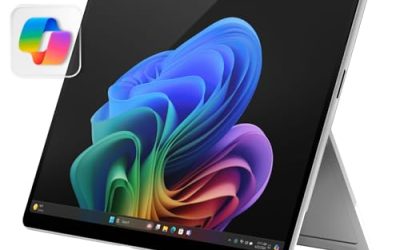
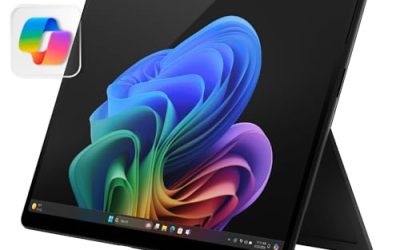
| Microsoft Surface Pro (2024), Snapdragon X Elite, 512GB, Platinum | Windows users who also need a laptop replacement | Full Windows in a tablet body with a kickstand and pen support |
How to Choose
Decide the operating system first. This is the decision that shapes everything else. Windows machines run the exact desktop builds of Photoshop, Clip Studio Paint, ZBrush and your studio pipeline tools. iPadOS and Android offer superb touch-first art apps, led by Procreate, Clip Studio Paint and Fresco, but some desktop-only software and plug-ins never make the jump. List the two or three programs you bill hours in, then check which platforms run them natively.
Pen feel is a specification, not a vibe. Pressure levels are only the headline. What you feel day to day is initial activation force, tilt behaviour, parallax through the glass, and how the nib texture drags on the surface. Battery-free EMR pens never need charging and tend to feel consistent; active pens from Apple and Microsoft add features such as barrel roll and haptic feedback. Etched or matte paper-like glass reduces the skating sensation that glossy screens have.
Read the screen like a colourist. For professional work, look for full coverage of sRGB at minimum, and DCI-P3 or Adobe RGB coverage if you deliver for print or video. OLED panels give true blacks and strong contrast, which helps when painting dark scenes, while high resolution on a 13- to 16-inch canvas keeps line work crisp at normal drawing distances. A laminated display, where the glass sits directly on the panel, shrinks the visible gap between nib and line.
Match the hardware to your file sizes. A comic page with a few dozen layers runs happily on mid-range hardware. A poster-size canvas with hundreds of layers, large brushes and 3D references needs real RAM and a fast processor. Check the storage tier carefully: some models expand with microSD, others are fixed for life, and cloud-dependent workflows get painful on the road.
Plan for the desk as well as the sofa. Standalone does not have to mean isolated. Several machines here can drive an external monitor, connect to a NAS, or even serve as a pen display for a desktop PC when you are back in the studio. If the tablet will hand files to a main workstation every evening, confirm the transfer route and the file format round trip before you buy.
Best Options
HUION Kamvas Studio 16
The Kamvas Studio 16 is the closest thing in this guide to a traditional pen computer: a Windows 11 Pro machine with an Intel Core i7, real RAM and a proper SSD, built into a 15.8-inch pen display. It runs the full desktop versions of Photoshop, Clip Studio Paint, Illustrator and ZBrush with no mobile editions and no compromises on plug-ins, brushes or export formats.
The screen is a 2.5K QHD panel with touch, full lamination and coverage of the Adobe RGB gamut, which suits print-oriented illustrators. The included PW550S slim pen uses Huion PenTech 3.0+ with 8,192 pressure levels and needs no battery or charging. For a studio that wants a second, self-contained Windows seat for drawing, this is the most direct route.
Specs
- 15.8-inch 2.5K QHD touchscreen; 100 percent Adobe RGB colour gamut; Intel Core i7 processor; 16GB RAM; 512GB SSD; Windows 11 Pro; HUION Slim Pen PW550S with PenTech 3.0+ and 8,192 pressure levels, battery-free; model KS1601-US
Best for: Windows professionals who want desktop software on a pen-first machine
Watch out for: It is a drawing surface first and a general computer second, the fan and battery behaviour follow the PC hardware inside, and there are no physical shortcut keys, so a separate shortcut remote or keyboard helps
Wacom MovinkPad Pro 14
Wacom built the MovinkPad Pro 14 for one job: drawing, anywhere, with nothing else to carry. It is a standalone Android tablet with a 14-inch OLED screen, an etched matte surface that mimics paper texture, and the slim version of the Pro Pen 3, the same pen technology Wacom ships with its professional pen displays. There is no computer to boot, pair or update before a session; you pick it up and draw.
The hardware around the pen is serious: a Snapdragon 8s Gen 3 processor, generous memory and storage with microSD expansion, and bundled creative software including Clip Studio Paint licences and Wacom’s own canvas and shelf apps. Because it runs Android, the app library is the mobile one, which is the honest limit of the concept.
Specs
- 14-inch OLED display at 2880 x 1800 resolution with 120Hz refresh rate; 100 percent DCI-P3 colour gamut; Qualcomm Snapdragon 8s Gen 3 processor; 12GB RAM; 256GB storage with microSD expansion; Android operating system; Wacom Pro Pen 3 with 8,192 pressure levels, battery-free, replacement nibs stored in the pen
Best for: Pure drawing anywhere, with no interest in a general tablet
Watch out for: Android apps only, so desktop Photoshop and some studio pipeline tools are out of reach, and the foldable stand is a separate accessory
Apple iPad Pro 13-Inch (M4), 512GB, Space Black
The iPad Pro is the machine most professional illustrators already know. The 13-inch M4 model pairs the Ultra Retina XDR tandem OLED display with Apple’s fastest tablet chip, and it supports the Apple Pencil Pro, which adds squeeze gestures, barrel roll and haptic feedback to the drawing experience. Procreate, Clip Studio Paint, Fresco and Affinity form the deepest mobile art library on any platform.
Colour work is a strength: the P3 wide colour display is factory tuned, the panel is fully laminated, and the optional nano-texture glass on higher storage tiers cuts reflections for studio lighting. What you give up is the desktop itself: iPadOS versions of major apps are powerful but not identical to their macOS or Windows builds.
Specs
- 13-inch Ultra Retina XDR tandem OLED display at 2752 x 2064 resolution and 264 ppi; ProMotion 120Hz; P3 wide colour and True Tone; Apple M4 chip; 512GB storage; Wi-Fi 6E; Face ID; LiDAR scanner; 12MP front and back cameras; supports Apple Pencil Pro and Apple Pencil (USB-C), sold separately; item weight 1.28 pounds
Best for: Illustrators invested in the iPad app ecosystem
Watch out for: The pencil is a separate purchase, storage cannot be expanded, and a handful of desktop-only tools and plug-ins have no iPadOS equivalent
Samsung Galaxy Tab S10 Ultra, 256GB, Moonstone Gray
The Galaxy Tab S10 Ultra offers the biggest canvas in this guide: a 14.6-inch Dynamic AMOLED 2X screen with an anti-reflection coating that keeps it usable under bright studio lights and near windows. Samsung includes the S Pen in the box, and the pen is battery-free, magnetically attaches to the tablet and works across Samsung’s notes and drawing apps plus the Android editions of Clip Studio Paint and other major art tools.
Under the screen sits a MediaTek Dimensity 9300+ processor with ample memory, and Samsung DeX can turn the tablet into a desktop-style workspace with a monitor and keyboard when you return to your desk. An IP68 rating for both the tablet and the S Pen makes it the least fragile option here for location work.
Specs
- 14.6-inch Dynamic AMOLED 2X display at 2960 x 1848 resolution with 120Hz refresh rate and anti-reflection coating; MediaTek Dimensity 9300+ processor; 12GB RAM; 256GB storage with microSD expansion; S Pen included in the box, battery-free; 11,200 mAh battery; IP68 water and dust resistance; model SM-X920N
Best for: Artists who want the largest canvas and an included pen
Watch out for: The size that makes it a great canvas makes it heavy for one-handed sketching, and the Android app library still trails iPadOS for some specialist art tools
Microsoft Surface Pro (2024), Snapdragon X Elite, 512GB, Platinum

The Surface Pro is the pick when the drawing tablet also has to be your laptop. It runs full Windows 11, so desktop Photoshop, Clip Studio Paint and the rest of a studio pipeline install exactly as they do on a desktop PC, and the built-in kickstand plus an optional keyboard cover turn it from slate to workstation in seconds. The 13-inch OLED touchscreen is sharp and fast, and pen input comes through the Surface Slim Pen, which charges in its storage cradle on the keyboard or a separate dock.
This configuration pairs the 12-core Snapdragon X Elite with an OLED panel and a half-terabyte SSD, giving it the longest unplugged working day of the Windows options here. The caveat for artists is software fit: most major creative apps now run natively on this processor family, but older plug-ins and niche tools should be checked before you commit.
Specs
- 13-inch OLED touchscreen at 2880 x 1920 resolution with 120Hz refresh rate; Qualcomm Snapdragon X Elite 12-core processor; 16GB LPDDR5x RAM; 512GB SSD; Windows 11; up to 14 hours of battery life for local video playback; built-in kickstand; supports Surface Slim Pen, sold separately; model ZIA-00001
Best for: Windows users who also need a laptop replacement
Watch out for: Both the pen and the keyboard cover are separate purchases, and a small number of legacy plug-ins and utilities still lack native support on Snapdragon Windows machines
Which One Fits
Full desktop software, pen first: choose the HUION Kamvas Studio 16. It is a Windows PC that happens to be shaped like a drawing tablet, which is exactly what a Photoshop- or ZBrush-centred workflow needs away from the main workstation.
Drawing only, anywhere: choose the Wacom MovinkPad Pro 14. Nothing in this guide gets you from idea to line work faster, and the Pro Pen 3 on etched OLED glass is the most paper-like surface here.
The deepest art app library: choose the iPad Pro 13-inch. If your income runs through Procreate or the iPad editions of your main tools, the ecosystem decides this one for you.
Maximum canvas, pen included: choose the Galaxy Tab S10 Ultra. The 14.6-inch screen gives comic and storyboard work real room, and there is no extra pen purchase hiding in the total.
One machine for drawing and everything else: choose the Surface Pro. It is the only option here that fully replaces a Windows laptop while still serving as a capable pen tablet.
Common Mistakes
Buying a pen display by accident. Listings for pen displays and pen tablets look similar and sit in the same search results, but they are monitors and input surfaces that do nothing without a host computer. Every product in this guide is a complete computer; if a listing never names a processor, RAM and an operating system, it is not one.
Forgetting the pen is a separate line item. Apple and Microsoft sell their pens separately, while Wacom, Huion and Samsung include theirs. Compare like with like when you total up a purchase, and budget for the pen, a case and possibly a stand at the same time.
Assuming your main app exists on every platform. The mobile edition of a famous program is often a different product with a different file ceiling and feature set. Confirm layer limits, brush engine parity and plug-in support on the exact platform you are buying, not on the brand’s homepage in general.
Choosing storage you cannot change later. Only some of these machines accept microSD cards. Layered working files, reference libraries and offline project archives grow quickly; if you pick a fixed-storage model, buy the tier above the one you think you need.
FAQ
What makes a drawing tablet computer different from a pen display?
A drawing tablet computer contains the whole computer: processor, memory, storage, battery and operating system inside the device you draw on. A pen display is a screen and pen surface that must be connected to a separate PC or Mac, which does all the processing. If you want to draw away from a desk with no other machine involved, you need the standalone kind covered in this guide.
Can a standalone drawing tablet run the full version of Photoshop?
Only the Windows models can. The HUION Kamvas Studio 16 and the Microsoft Surface Pro run the same desktop build of Photoshop you would install on a PC, including most plug-ins. The iPad Pro, Galaxy Tab S10 Ultra and Wacom MovinkPad Pro 14 run mobile editions of major art apps, which are excellent for drawing and painting but are not the desktop programs.
How much RAM and storage does professional illustration work need?
For sketching, comics and moderate layer counts, the memory fitted to the Android and iPad models here is sufficient, because their apps are built around it. For poster-size canvases, hundreds of layers or 3D-assisted workflows on Windows, treat 16GB of RAM as the sensible floor and choose storage with headroom, since fixed-storage models cannot be upgraded after purchase.
Do these tablets work as a pen display for a desktop PC as well?
Some do. The Wacom MovinkPad Pro 14 can connect to a Mac or PC and act as a pen display, and the Samsung Galaxy Tab S10 Ultra can serve as a wireless second screen with pen input for a Windows PC. The iPad Pro can mirror or extend a Mac through Sidecar. The dedicated Windows machines do not need the feature, since they already run the desktop software themselves.
Final Verdict
There is no single winner here, because the category splits cleanly by operating system. Windows professionals who bill hours in desktop software should look first at the HUION Kamvas Studio 16 for a pen-first machine, or the Microsoft Surface Pro if the tablet must also replace a laptop. Artists who live in mobile apps get the most polished drawing experience from the Wacom MovinkPad Pro 14, the deepest software library from the iPad Pro 13-inch, and the largest canvas with an included pen from the Samsung Galaxy Tab S10 Ultra. Pick the platform your software already lives on, then let the pen and the screen settle the rest.