Key takeaways
- Compare professional drawing tablet computers for mobile presentations, from standalone OLED tablets to portable pen displays with pro pens.
Presenting with a drawing tablet is not the same decision as buying one for a fixed studio desk. You need a screen you can annotate live, carry between rooms, and connect to a projector or a client’s monitor without a tangle of adapters, while the pen still has to feel precise enough for professional illustration, markup, and design work in front of an audience.
This guide serves presenters who sketch ideas in meetings, trainers who annotate diagrams live, and illustrators who pitch work away from their main workstation. Every pick below was chosen from the product name and specifications stated on its Amazon listing, and each entry states its form factor clearly, because a standalone tablet computer and a pen display solve the mobile presentation problem in different ways.
Quick Picks
As an Amazon Associate we earn from qualifying purchases
| Product | Best for | Key spec from title |
|---|---|---|
| Wacom MovinkPad Pro 14 | Presenting with no laptop at all | 14-inch OLED, no computer needed |
| XPPen Magic Drawing Pad | Lightweight standalone presenting and sketching | 12.2-inch standalone tablet, 16K pressure levels |
| HUION Kamvas Pro 13 (2.5K) | Sharp pen-display presenting from a laptop | 13.3-inch 2.5K QHD pen display |
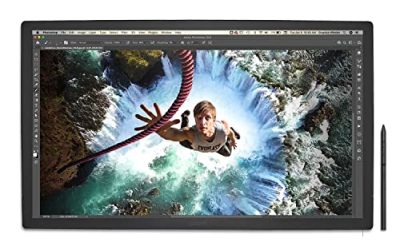
| XPPen Artist 15.6 Pro | Larger pen-display canvas for detailed walkthroughs | 15.6-inch full-laminated display, 120% sRGB |
How to Choose
Standalone Tablet Computer or Pen Display
This is the first fork in the road, and it changes everything you carry. A standalone tablet computer, such as the MovinkPad Pro 14 or the Magic Drawing Pad, contains its own processor, storage, battery, and operating system, so you can walk into a room, open your slides or drawing app, and present without any host machine. A pen display, such as the Kamvas Pro 13 or Artist 15.6 Pro, is a drawing screen only: it needs a laptop beside it, which adds weight but gives you full desktop software and your familiar file setup during the talk.
How You Will Connect to the Room Screen
Check the output path before you buy, because presentation rooms rarely match your desk setup. Standalone Android tablets typically mirror wirelessly or through a USB-C adapter, so confirm the venue screen accepts that route and test any adapter at home. Pen displays add a second link in the chain: the laptop drives both the pen display and the projector, often through HDMI or full-featured USB-C. A model with a single full-featured USB-C connection, for example, keeps a laptop bag far lighter than one needing separate video, data, and power cables.
Screen Size, Resolution, and Readability at a Distance
Your audience reads the screen from farther away than you do, so legibility matters more than raw drawing area. A 13.3-inch 2560 x 1600 panel keeps fine diagram labels crisp when the image is scaled up on a projector, while a 15.6-inch Full HD display gives your hand more room for broad annotation strokes. For standalone use, an OLED or high-gamut panel helps colors in charts and artwork survive the washed-out look of bright meeting rooms. Match the panel to the work: dense technical drawings reward resolution, while freehand sketching rewards space.
Pen Performance and Presentation Controls
During a live talk you cannot pause to hunt through menus, so pen feel and physical controls directly affect how confident you look. Battery-free pens remove charging from your preparation routine, and higher pressure levels with tilt support make annotation strokes vary naturally, which helps emphasis marks read clearly. Programmable shortcut keys and dials let you switch colors, undo a stroke, or change brush size without turning to a keyboard. Test your most-used actions, such as advancing slides and erasing, and assign them to the controls you can reach without looking down.
The 4 Best Options
Wacom MovinkPad Pro 14

Form factor: standalone tablet computer. This is the pick for presenters who want to leave the laptop behind entirely. Its 14-inch OLED canvas is large enough to draw and annotate in front of a small group, the battery-free Pro Pen 3 keeps professional pen control, and the Android system with included creative apps means your files, notes, and drawing tools travel in one thin device. It also suits illustrators who pitch concepts on site, because the same tablet used to create the work becomes the screen used to present it.
Specs
- Brand: Wacom
- Model name: MovinkPad Pro 14 Android All-in-One
- Display: 14-inch OLED, 2880 x 1800 resolution
- Operating system: Android 15
- Processor: Snapdragon 8s Gen 3
- Memory and storage: 12GB RAM, 256GB storage, expandable microSD slot
- Pen: Wacom Pro Pen 3, battery-free, 8,192 pressure levels
- Surface: Wacom Premium Textured Glass, anti-reflection, anti-glare, and anti-fingerprint
Best for: Presenters and illustrators who want one standalone device for drawing, storing, and showing work with no host computer.
Watch out for: Confirm your presentation and drawing workflow fits Android apps, and check how you will mirror or cable this tablet to the specific room screen before the meeting.
XPPen Magic Drawing Pad

Form factor: standalone tablet computer. Presenters who move between classrooms, studios, and client sites will value how little this one asks them to carry. At 599 grams with a paper-like screen, it works as a sketching surface during preparation and as an annotation screen during the talk itself, all from its own Android system and battery. The 16K pressure pen gives presenters fine control for handwriting and diagram markup, while the 3:2 screen shape leaves useful vertical room for documents and slide notes compared with wider entertainment tablets.
Specs
- Brand: XPPen
- Display: 12.2-inch, 2160 x 1440 resolution, 3:2 aspect ratio
- Color: 115% sRGB, 16.77 million colors, AG-etched paper-like screen
- Pen: X3 Pro Slim stylus, 16,384 pressure levels, 60 degree tilt support, battery-free
- Operating system: Android 14
- Memory and storage: 8GB RAM, 256GB storage, expandable up to 1TB with microSD
- Battery: 8,000 mAh, stated 13 hours of use
- Cameras: 13MP rear camera and 8MP front camera
- Build: 6.9 mm slim, 599 g
Best for: Mobile presenters, teachers, and sketching professionals who want the lightest standalone option in this guide.
Watch out for: Verify that the Android versions of your drawing and presentation apps handle your file formats, and confirm the output or casting method for the screens you present on most often.
HUION Kamvas Pro 13 (2.5K)
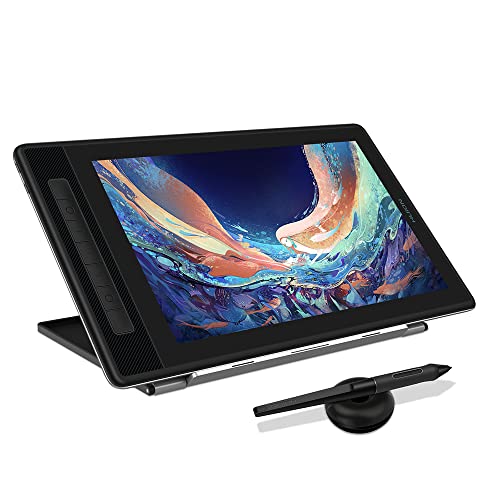
Form factor: pen display, which requires a connected computer. This compact display suits professionals whose presentation lives on a laptop running full desktop software, but who still want to annotate directly on the image the audience sees. The 2.5K resolution on a 13.3-inch panel keeps labels and line work unusually sharp for its size, the seven programmable keys sit within reach during a talk, and the single full-featured USB-C route can simplify the laptop connection. At 1 kg, it slips into a laptop bag without turning travel into a chore.
Specs
- Brand: HUION
- Model: Kamvas Pro 13 (2.5K), model GT1302
- Display: 13.3-inch IPS, 2560 x 1600 QHD+ resolution, 226 PPI, 60Hz
- Color: 145% sRGB gamut, 16.7M display colors, 1200:1 contrast ratio
- Pen: PW517 digital pen, battery-free EMR, 8,192 pressure levels, plus or minus 60 degree tilt recognition
- Controls: 7 programmable press keys
- Interface: Full-featured USB-C compatible with HDMI and DP, plus power USB-C
- Compatibility: Windows 7 or later, macOS 10.12 or later, Android with USB3.1 DP1.2 or later
- Size and weight: 373.5 x 229.1 x 10 mm, 1 kg, foldable stand ST200 included
Best for: Laptop-based presenters who want the sharpest compact pen display for annotating detailed slides, diagrams, and artwork live.
Watch out for: Your laptop USB-C port must support the required video standard for a one-cable link, and this display has no battery or computer inside, so it cannot present on its own.
XPPen Artist 15.6 Pro

Form factor: pen display, which requires a connected computer. Choose this one when the presentation involves walking an audience through detailed artwork, plans, or photo edits and a smaller screen would cramp your hand. The 15.6-inch fully laminated panel gives broad strokes room to breathe, the Red Dial and eight shortcut keys keep zoom and brush changes under your fingers mid-sentence, and the slim 11 mm profile still travels between office, classroom, and client site. It fits presenters who already carry a capable laptop and want the largest drawing area in this guide.
Specs
- Brand: XP-Pen
- Display: 15.6-inch full-laminated IPS display, 1920 x 1080 Full HD resolution
- Color: 120% sRGB, 88% NTSC, 178 degree viewing angle
- Pen: PA2 battery-free stylus, 8,192 pressure levels
- Controls: 8 customizable shortcut keys and Red Dial
- Connectivity: HDMI and USB
- Compatibility: Windows, macOS, Linux, and Chrome OS as stated on the listing
- Profile: 11 mm slim
Best for: Presenters who work from a laptop and want a larger pen-display canvas for detailed live walkthroughs and annotation.
Watch out for: Plan for the multi-cable connection and a power source at the presenting desk, and confirm your laptop ports match the included cable setup before you travel.
Which One Fits Your Situation
You Present in Different Rooms Every Week
Pick a standalone model so the room only has to provide a screen, not a compatible computer. The MovinkPad Pro 14 gives you the larger OLED canvas and more storage for decks and artwork, while the Magic Drawing Pad is easier to carry all day. Load every file onto the tablet in advance, keep a tested adapter in the same bag, and you remove most setup risk from unfamiliar venues.
Your Slides and Software Live on Your Laptop
Keep your desktop workflow and add pen control with a pen display. The Kamvas Pro 13 (2.5K) suits presenters whose material is dense with small text and fine diagrams, because its resolution keeps annotation legible when projected. The Artist 15.6 Pro suits broader, more visual walkthroughs where drawing space matters more than pixel density. In both cases, rehearse the dual-screen arrangement at home so the audience sees the shared screen while your notes stay on the laptop display.
You Annotate Training Material Live
Trainers who mark up diagrams, equations, or process charts while speaking benefit most from physical shortcut keys and a responsive battery-free pen. The Kamvas Pro 13 puts seven programmable keys beside the drawing area, and the Artist 15.6 Pro adds a dial for quick zooming into detail. If the training happens away from your own desk and no reliable computer is provided, switch to the Magic Drawing Pad and run the whole session from its Android apps instead.
You Pitch Creative Work to Clients
When the artwork itself is the presentation, screen quality becomes part of the pitch. The MovinkPad Pro 14 presents on the same OLED device used to finish the pieces, with wide color coverage that helps clients judge work accurately. For projects locked inside desktop applications, pair your laptop with the Artist 15.6 Pro and present from the larger display. Either way, export a flattened backup of every piece so a missing font never stalls the meeting.
Common Mistakes
- Assuming a pen display works on its own, then arriving without the laptop, drivers, and cables it needs to show anything at all.
- Choosing a standalone tablet before checking that Android versions of your drawing and presentation apps open your real project files.
- Ignoring the room connection, especially whether the venue screen takes HDMI, USB-C video, or wireless casting, and whether an adapter is required.
- Buying the largest display for travel without weighing the full kit, including stand, cables, and power supply, in the bag you actually carry.
- Skipping a rehearsal with dual screens, so slide notes, presenter view, and pen annotation end up on the wrong display during the talk.
Frequently Asked Questions
Can a pen display present without a laptop?
No. A pen display such as the Kamvas Pro 13 (2.5K) or Artist 15.6 Pro is a drawing screen with no processor, storage, or battery of its own. It must connect to a computer, which runs the software and sends the image onward to the projector or room screen during your presentation.
Are standalone drawing tablets good enough for professional presenting?
Yes, when your apps and files fit the Android system they run. Models such as the MovinkPad Pro 14 and Magic Drawing Pad combine a professional pen, storage, and battery in one device, so you can draw, store decks, and present from the same tablet. The limit is software: full desktop programs are not available, so check your workflow first.
What screen size works best for mobile presentations?
For most mobile presenters, 12 to 14 inches balances drawing room against bag weight, especially on standalone tablets you carry all day. A 15.6-inch pen display gives more annotation space for detailed walkthroughs but adds cables and a host laptop. Consider how far the audience sits as well, because projected size affects legibility more than the tablet panel itself.
How do I connect a drawing tablet to a projector?
Standalone tablets usually cast wirelessly or use a USB-C video adapter matched to the projector input, while pen displays connect to your laptop, and the laptop connects to the projector by HDMI or USB-C. Test the exact adapter, cable length, and display mirroring settings before the session, because venue equipment varies and a borrowed adapter may not carry video correctly.